Solution
Plan every promotion on one monday.com calendar
A single event can need a Facebook event, a newsletter spot, an Instagram reel, a story and a WhatsApp reminder, each going out on a different day. This setup puts every one of those promotions on the calendar in its channel’s colour. If you like, it can also show the people posting them where else the same event is being promoted.
Events are items, promotions are subitems
Each event you promote is an item on the board, with the date it happens. Each promotion for that event is a subitem with its own channel, flight date and status. Here’s the product launch party on 29 November:
| Promotion | Channel | Flight date | Status |
|---|---|---|---|
| Event page | Facebook Event | 9 Nov | Live |
| Newsletter feature | 16 Nov | Live | |
| Hype reel | Instagram Reel | 24 Nov | Scheduled |
| Day-of story | Instagram Story | 29 Nov | Scheduled |
| Reminder message | 29 Nov | Scheduled |
The board holds five events, from a Black Friday sale to a New Year’s Eve party, set up the same way. Expand one to see its promotions:
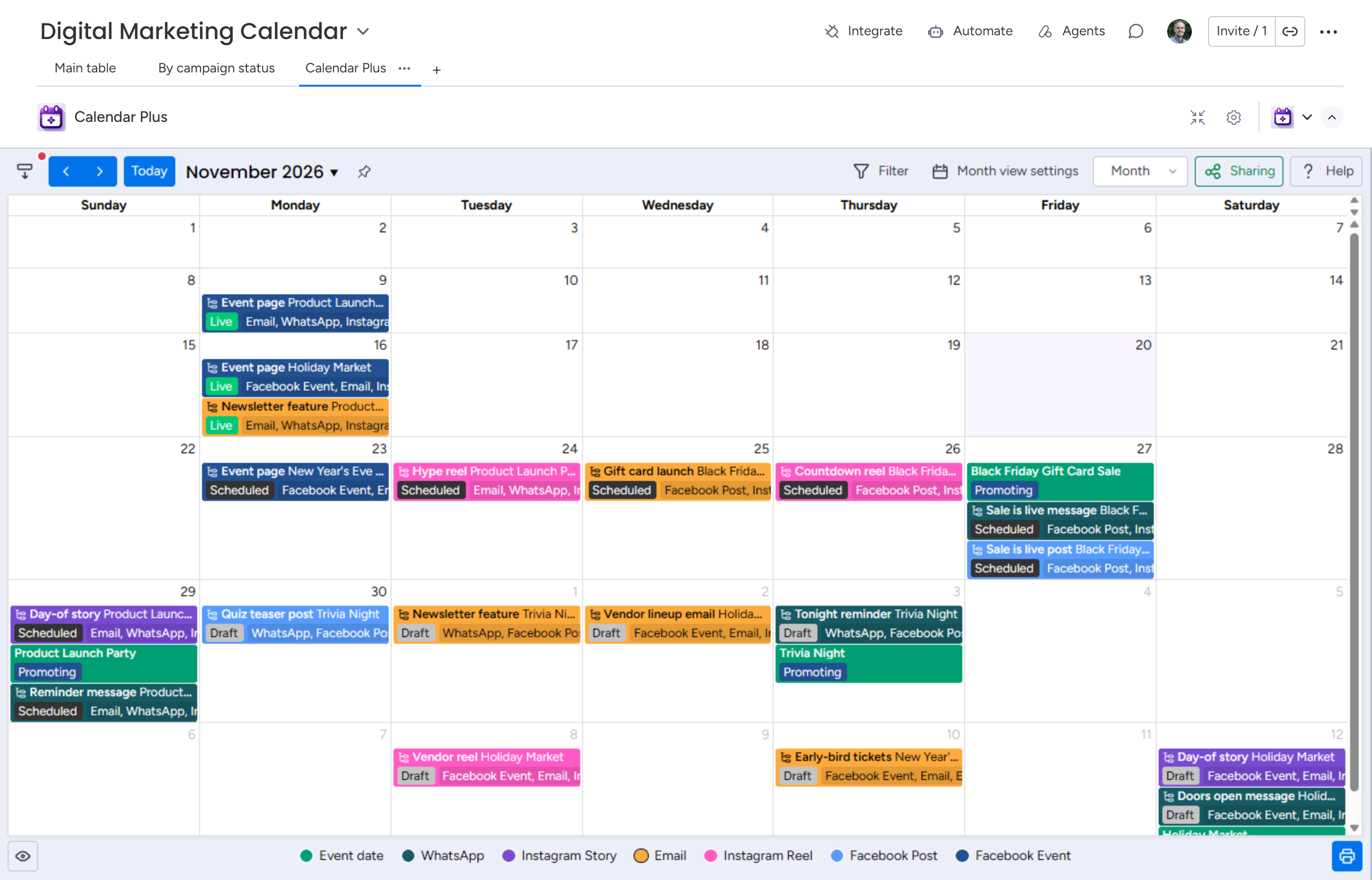
Each colour is a channel
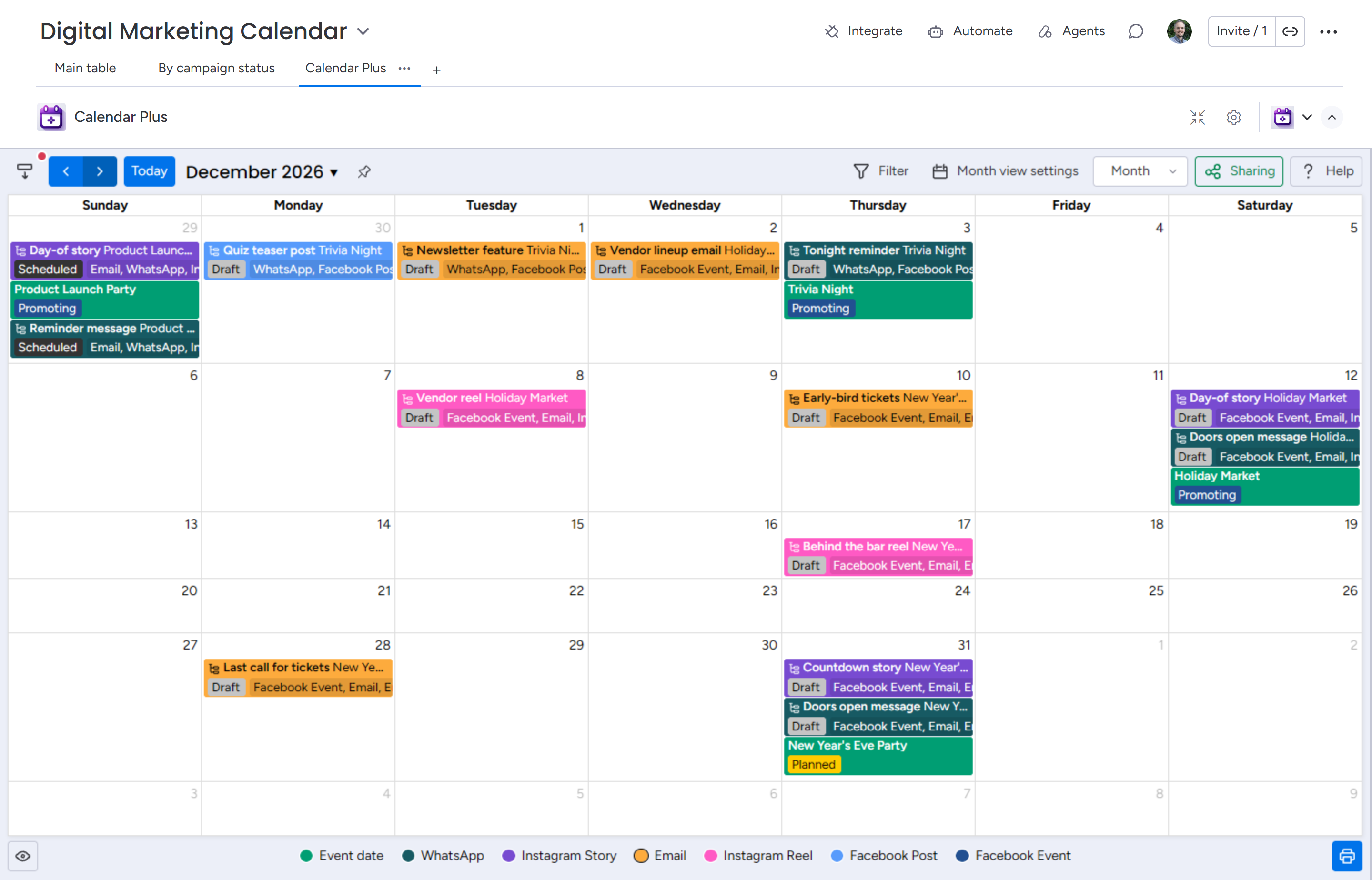
In Calendar Plus, every promotion sits on its flight date in its channel’s colour: navy for Facebook events, pink for Instagram reels, orange for email, teal for WhatsApp. Each promotion shows its own name followed by the event it promotes, and the events themselves appear in green on the day they happen.
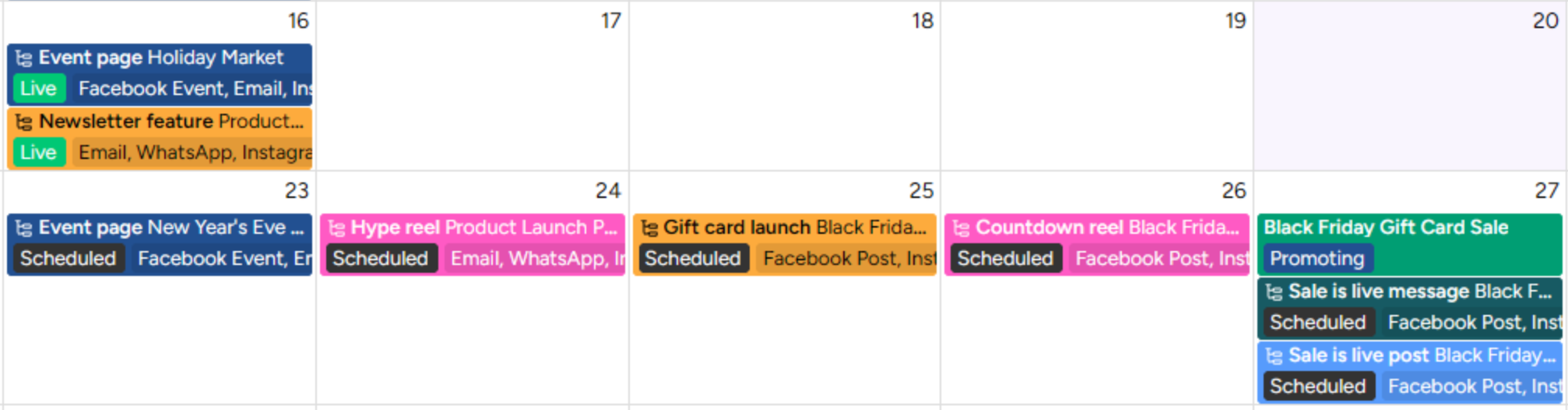
Status shows on each promotion too: grey for draft, black for scheduled, green for live. A glance at 27 November tells you the Black Friday post and WhatsApp message are scheduled.
Optionally, show what else is planned
With an optional extra setup step, every promotion also lists all the channels its event uses. Whoever posts the launch party’s day-of story sees Email, WhatsApp, Instagram Reel, Instagram Story, Facebook Event on it. Before posting, they know the party is also being promoted by email, WhatsApp, reel and Facebook event, and can keep the story in line with those.
The same list makes gaps easy to spot. Trivia Night’s promotions read WhatsApp, Facebook Post, Email, so anyone looking at its teaser post can see that nothing is planned on Instagram yet.
Hover over a promotion for the full list, along with its status and creative:
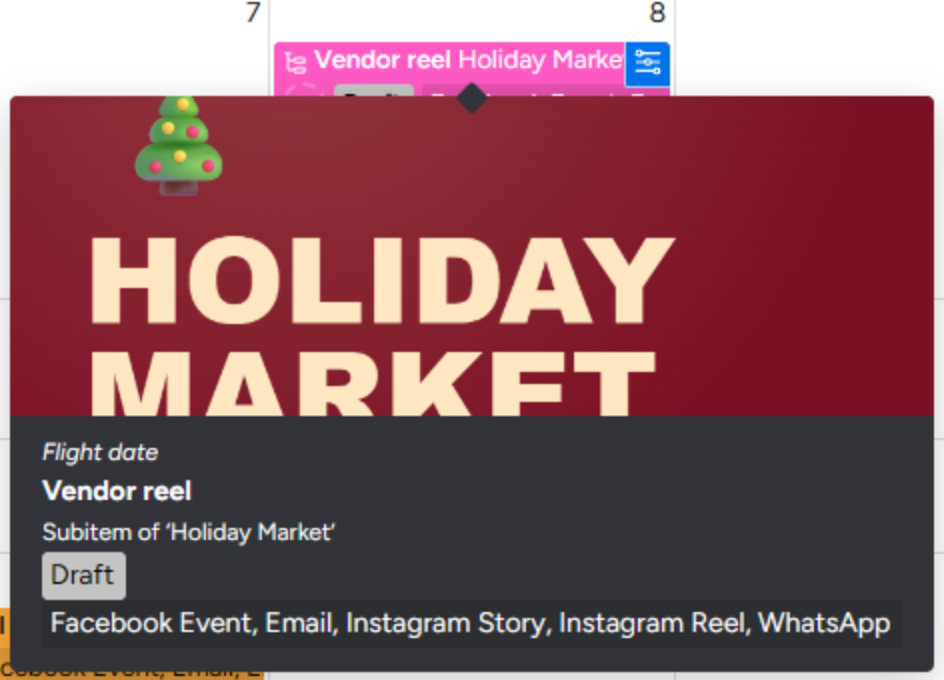
The list comes from three extra columns and a monday workflow, set up in the optional step below. To see the dates of the other promotions, open the event on the board.
Early promotions show up when they go out
The New Year’s Eve party is on 31 December, but its Facebook event goes live on 23 November. It sits on 23 November, labelled with the party’s name, so it shows up on the November calendar.
Try the calendar
This is the same calendar, shared from monday. Go to December, or hover over a reel to see its creative.
How to build it
Events and promotions
Create an item per event with an Event date (date) and Campaign status (status) column. Give each event a subitem per promotion, with Channel (status), Flight date (date), Promo status (status) and Creative (files) columns. Pick a distinct colour for each channel label.
Sibling channels (optional)
Skip this step if you don’t need each promotion to list its event’s other channels.
On the subitems’ Channel column, click … and choose Show Summary on Parent Item. This adds a column to each event, here called Channels, that lists the channels of all its promotions.
On the subitems, add a Connect boards column, Parent item, that points at your events board. Make it a two-way connection.
Create a monday workflow that fills it in: trigger When subitem created on your board, then a Connect boards action that links the new subitem to its parent item. Every new promotion is then linked to its event automatically.
Then add a mirror column on the subitems, Sibling channels, that shows the event’s Channels through Parent item.
Calendar Plus view
Click + next to your board views and choose Apps → Calendar Plus. In the view settings ⚙️ at the top right, tick Event date and Subitems.
Channel colours and labels
Hover over a promotion and click its blue settings button. Set Color by to Channel. Under Information at a glance, tick Show parent item, add Promo status to Show text (plus Sibling channels, if you set them up), and pick Creative under Show image.
For the events, open the same dialog from any event and add Campaign status to Show text.
Sharing
Anyone with access to the board can open the view. For everyone else, click Share/Embed for a link, an embed code, or a feed for Outlook, Google Calendar or Apple Calendar.