How to provide support information
To provide support information, please follow these steps:
Open help window
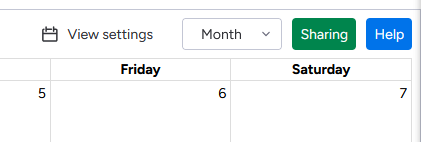
Click the blue Help button at the top right of the calendar.
Download support information
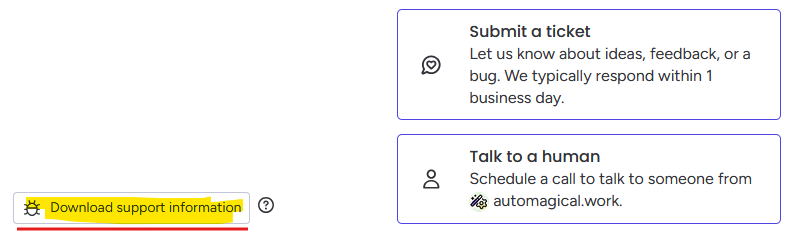
Click the Download Support Information button in the bottom left corner of the help window. This will download a file containing the Calendar Plus team can use to find the cause of the problem you’re experiencing.
A zip file will be downloaded called Calendar Plus support information.zip.
Send
Please include the file as an attachment in your reply to the Calendar Plus team.
What is in the support information file?
The support information file includes details such as (but not limited to):
- When the file was generated.
- Whether you're using a board view or a dashboard widget.
- Your account ID, account “slug,” user ID, and your role (admin, member, guest, or viewer).
- Your country code, monday.com language setting, time format, and account region.
- The version of Calendar Plus you’re using.
- The boards currently loaded.
- The monday.com account permissions granted to Calendar Plus.
- Any filters you’ve applied and the items monday.com has determined you should see.
- Your current settings.
- The layout of your board, including how your columns are configured.
- All events currently loaded in the calendar — including, but not limited to, their - IDs, titles, displayed columns, and assigned people.
- Your Calendar Plus subscription details.
As always, great care will be taken with the information you provide. This information will not be shared with third parties.